Meta Horizon OS 2.7
Your headset is up to date
CHECK
BEFORE YOU START
Meta Quest Settings: Update Your Headset First
Install any available update, restart your headset and then check again. A newly announced feature may still take time to reach every headset.
✓ CHECKED FOR META HORIZON OS 2.7 · 13 SEPTEMBER 2026
FEATURES · SET TINGS · USEFUL TRICKS
Meta Quest Settings for Quest 3 & 3S
Clear, practical settings that make your headset easier to
use, more comfortable and better suited to the way you
play.

Features can also roll out gradually. If a path looks different on your headset, open Settings and search for the bold setting name shown in this guide.
Meta sometimes moves settings.
Use your Touch controllers as
a gamepad
A useful OS 2.7 option for compatible 2D and cloud games.
Turn on Use your controllers as a gamepad. Press the Meta button and Menu button together to enter Gamepad Mode. Press the Meta button to leave it.
✓ Available on Meta Quest 3 and 3S.
✓ Useful with compatible Xbox and Steam Link experiences.
✓ It does not make every Quest game support gamepad controls.


Connect a Bluetooth
gamepad
Pair a supported controller directly with your headset.
Put the controller into pairing mode, select it from the list and confirm the connection.
✓ Xbox Cloud Gaming officially supports Xbox Wireless,Elite Series 2, Adaptive, DualShock 4, Nintendo Switch Pro and Backbone Pro controllers.
✓ If the Xbox app ignores your controller, try turning off Use the gaze cursor.
Make hand tracking easier to use

Swap naturally between your hands and Touch controllers.
Leave Auto Switch Between Hands and Controllers turned on. Put the controllers down and hold your hands in view to begin hand tracking.
✓ Pinch your thumb and index finger to select.
✓ Hand tracking only works in supported apps and experiences.
✓ Even, comfortable room lighting gives the cameras a clearer view of your hands.

Tip: Start with Large if you find menus tiring to read, then adjust until the interface feels comfortable without taking up too much space.
Choose a comfortable Display Size
Make text and interface controls easier to see.
Choose Small, Medium, Large or Extra Large. Display Size was added in OS 2.7 and applies across supported Meta Horizon OS screens and apps.
Use your headset while lying down
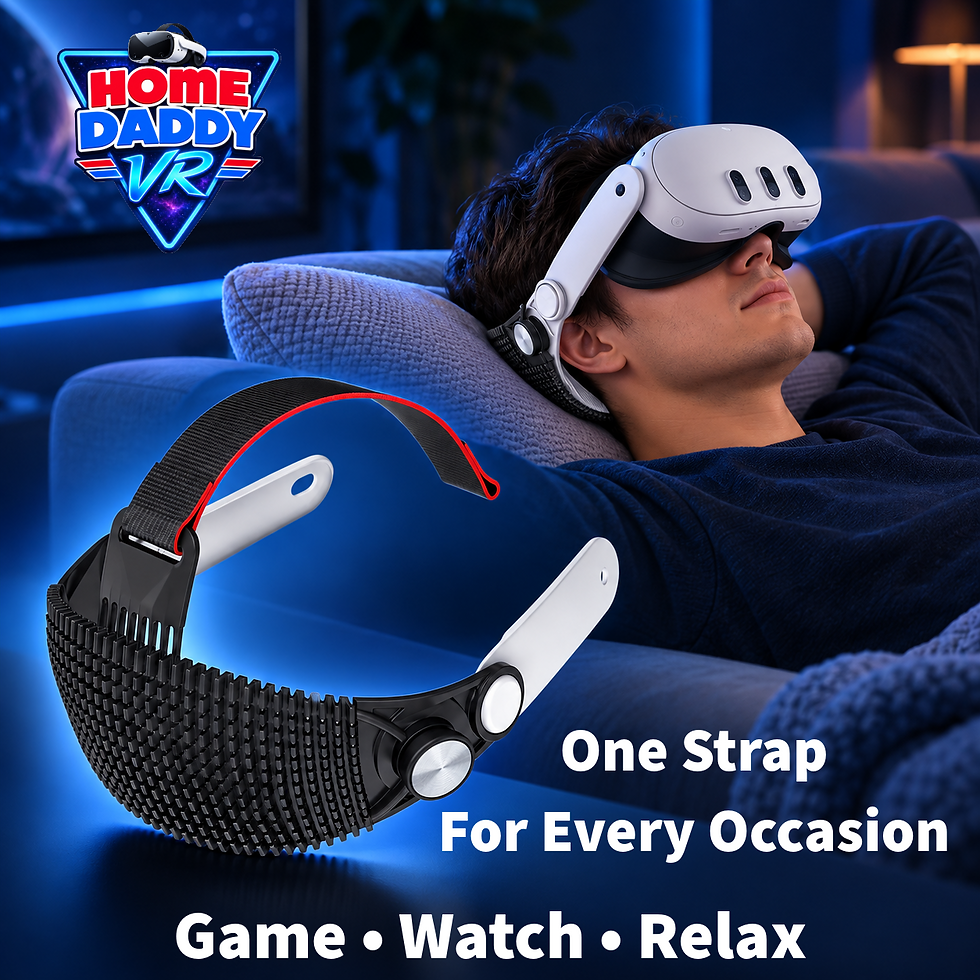
Reposition the horizon for relaxed, stationary viewing.
Turn on Lying Down Mode, get into position and hold the Meta button to recenter your view.
✓ Best for video, browsing and stationary experiences.
.png)
✓ Some apps can disable the mode when normal orientation is required for safety or gameplay.


Extend battery life when you
need it
Battery Saver trades some visual performance for longer play time.
Battery Saver reduces brightness towards 40%, caps refresh rate at 72Hz, uses stronger fixed foveated rendering and disables some CPU/GPU
performance boosts.
For demanding games or PC VR, leave it off when smoothness and image quality matter more than battery life.
Temporal Dimming: Quest 3 and 3S can gradually dim the display during a session.
Search Settings for Temporal Dimming if it is available on your headset.
Understand the new
extended refresh rates

major Quest 3 upgrade, but not a normal switch in Settings.
Supported apps can now request refresh rates above 120Hz on Meta Quest 3. A higher rate can make movement look smoother and reduce visible
motion blur, but the app still has to maintain the required performance.
NOT A NORMAL CONSUMER SWITCH
Games do not automatically run at 207Hz or 240Hz.
✓ You do not turn 207Hz on through normal headset Settings.
✓ The game or app must request and support the higher rate.
✓ Most existing Quest games will continue using 72Hz, 80Hz, 90Hz or 120Hz.
Higher is not automatically better: it leaves less time to render each frame and increases performance, heat and battery demands.
Source: Meta Horizon OS developer documentation, updated 27 August 2026.

See your surroundings
quickly
Move between immersive VR and passthrough without hunting through menus.
✓ Meta Quest 3: double-tap the side of the headset.
✓ Meta Quest 3S: press the Action Button.
✓ The Quest 3S Action Button can be customized for short-press and long-press actions. Search Settings for Action Button.
Use Meta Virtual Display
Bring your computer screens into the headset.
Open Meta’s built-in Virtual Display app from Quick Controls or your Library. Connect a compatible Windows PC or Mac and arrange up to three screens.
✓ OS 2.7 adds HDMI display support using a compatible HDMI-to-USB-C adapter.
✓ Meta Virtual Display is the built-in Meta app.
✓ Virtual Desktop is a separate third-party app with it's own settings.


Tune PC VR and Virtual
Desktop sensibly
Change one setting at a time and test before increasing quality again.
Virtual Desktop refresh rate and graphics controls are inside the third-party Virtual Desktop app, not in Meta Quest system Settings.
✓ Higher refresh rates demand more from your gaming PC and network.
✓ If the image stutters or drops frames, lower the refresh rate or graphics quality.
✓ Turn off Battery Saver before judging PC VR smoothness; it caps the headset at 72Hz and disables performance boosts.
Use voice and head movement with supported 2D panels. Availability
can vary, so search for the exact setting name.
Automatic App Offload
Let the headset remove unused app files while keeping your saved data. You can exclude apps that you always want installed.
Useful storage and accessibility settings
These tools can make your headset easier to manage and more comfortable to use. Availability may vary by language, account and rollout.
Live Captions
Turn on Live Captions for supported 2D apps, videos and media. It does not caption other players speaking in VR.
On-device dictation
Voice Control
Quest 3 and 3S can use on-device dictation without sending every spoken entry to the internet. Search Virtual Keyboard to check availability.
Quest 3S only
The physical Action Button can open passthrough and be customized for short and long presses.
Quest 3 only
The experimental Surface Keyboard and Touchpad feature is for Quest 3.
Quest 3 + Quest 3S
Core settings in this guide, including Display Size, Gamepad Mode, Battery Saver, hand tracking and Meta Virtual Display.
Know which features apply to your headset
Most of this guide works on both headsets. These are the important differences to remember.
Why can’t I find a setting?
Update and restart your headset, then search Settings for the exact
bold name. Meta rolls features out gradually and sometimes changes
their location.
Can every game run at 120Hz?
No. The app must support it. Meta Horizon Link can offer 120Hz for
compatible PC VR setups, but Battery Saver caps the headset at 72Hz.
Quick answers
Will these settings affect my
games?
Some can. Battery Saver lowers refresh rate and performance, while
hand tracking and other features only work where the app supports
them.
Virtual Display or Virtual Desktop?
Meta Virtual Display is Meta’s built-in computer-screen app. Virtual
Desktop is a separate third-party app with its own streaming and performance controls.